
Check the Outlook bit version
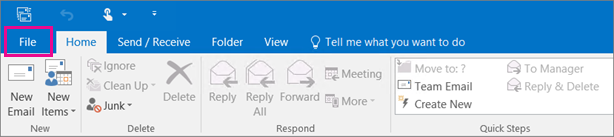
- From the Outlook Application click on “File“.
- Click “Office Account” OR if you do not see the “Office Account” option click on “Help“.
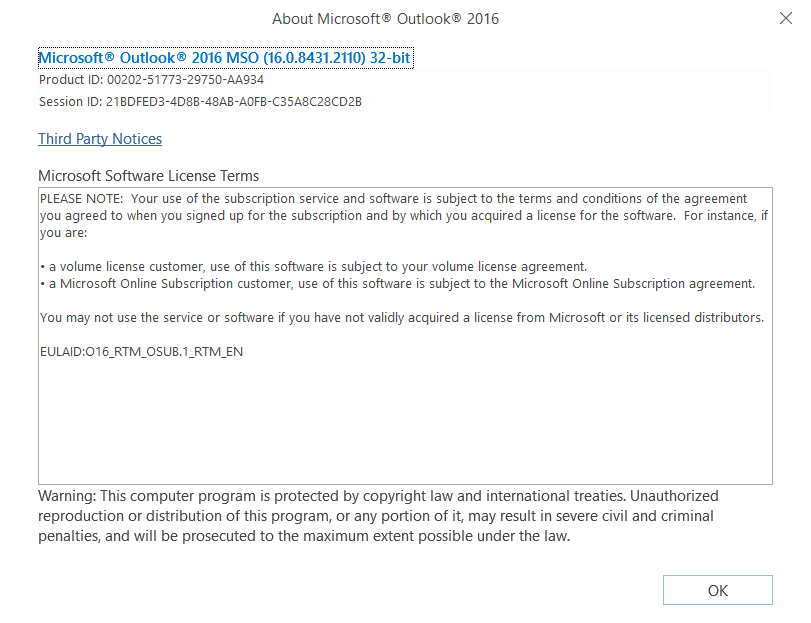
- Next click “About Outlook“.
- At the top of the “About Outlook” box you can find the bit version of the installed Outlook Application. Make a note of the bit-version i.e. 32-bit or 64-bit.
- Close any running instance of the Outlook application (make sure to save your work).
- Use the installer version corresponding to you Outlook bit version
Run the Outlook add-in Installer
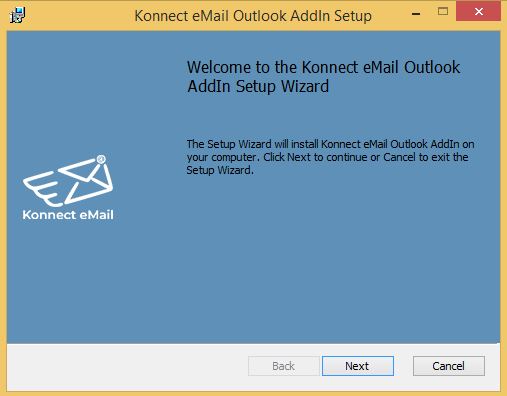
- Run the setup file for Konnect eMail and click Next, on the welcome screen of install window.
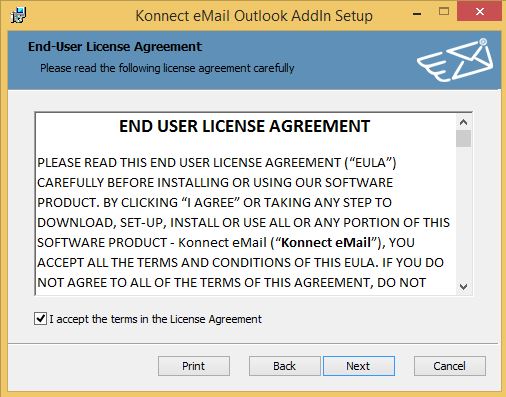
- Read and agree to the terms within End User License Agreement and hit Next.
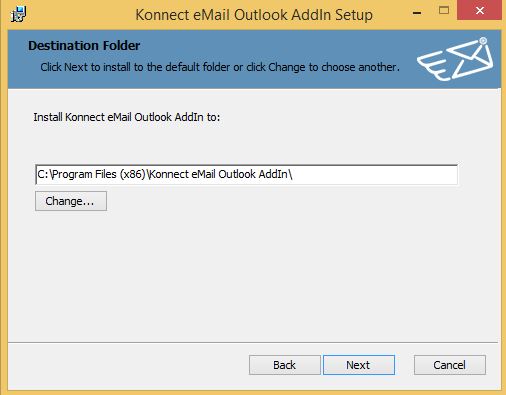
- Confirm install directory and hit Next.
- Click Install and you will be prompted to confirm the publisher of the software and allow it to install on your machine – click Yes.

- Installation should only take 5-10 secs and you will be prompted when it completes – click Finish.
