
This document details the configuration and settings of the SharePoint Explorer Outlook Add-In.
Getting Started
In order to get started you must add at-least one SharePoint/O365 location.
Navigate to the “Konnect eMail” tab within the Outlook application and click “Settings” to access the settings modal. This settings modal is divided in 5 tabs:
Sites
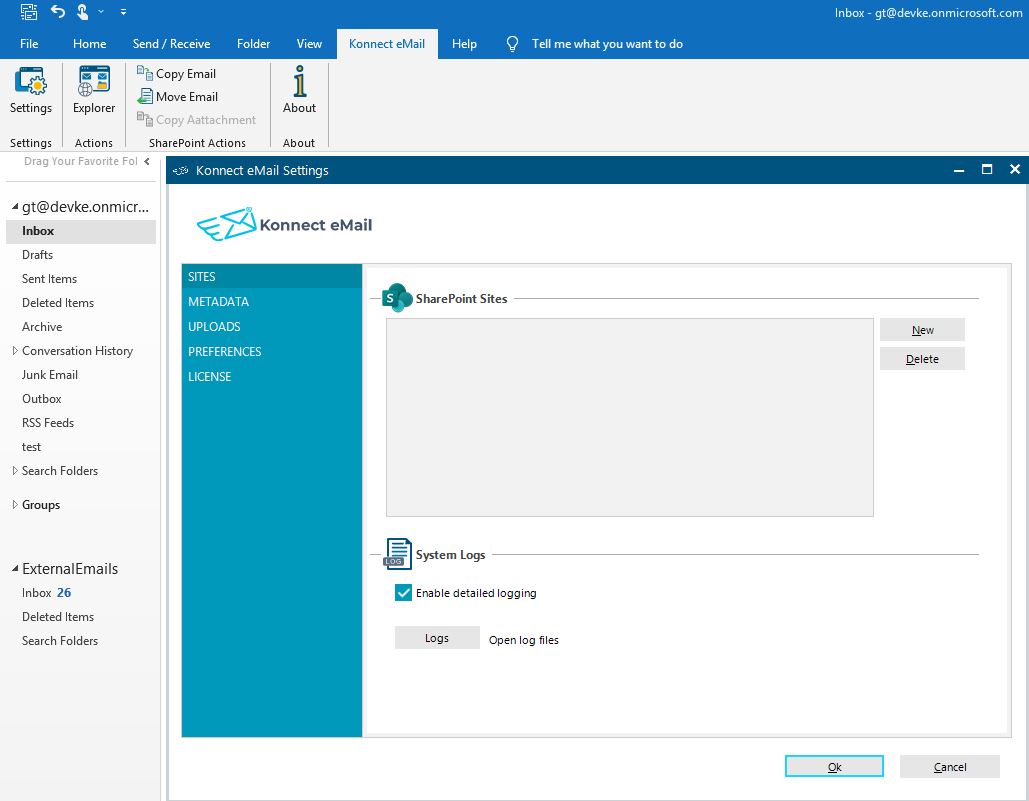
Sites: Add or remove SharePoint & O365 save locations for the Add-In.
Add
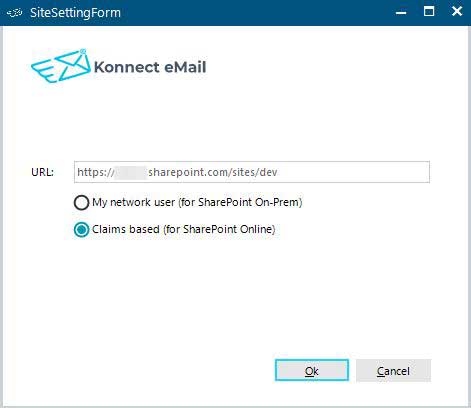
- click the “New” button and a modal will open. Enter the SharePoint site url in the “URL” text field and hit “Ok”
- at this point the add-in will try to authenticate you as a valid user and will prompt you to sign-in to SharePoint. —- this will only occur if you are not already signed in on the browser —-
- the app will request access to M365 resources on your behalf. Click “Accept” to grant the permissions. Note: if you are an administrator check the “Consent on behalf of your organization” checkbox to grant access on users behalf.
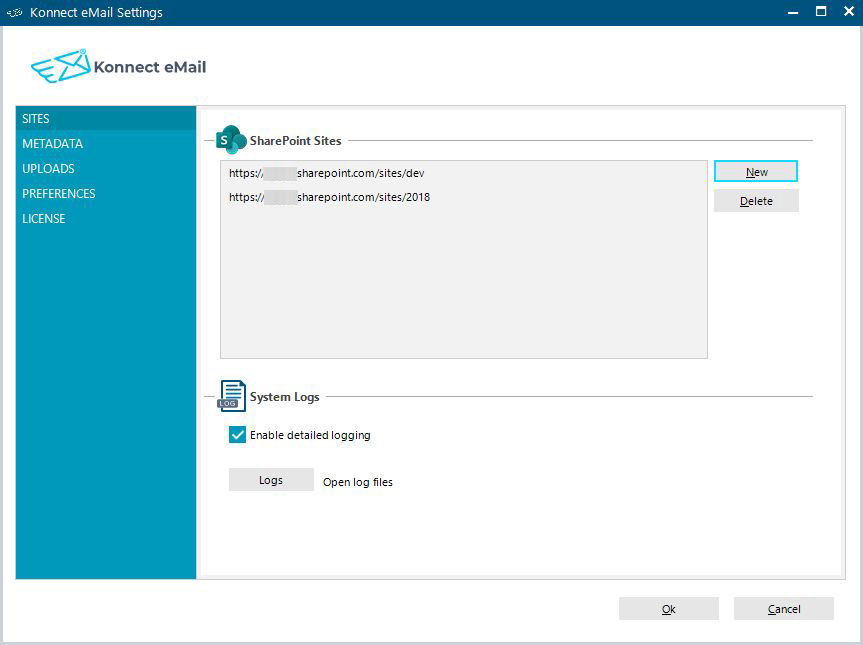
- the site should now be added to the settings list. Here you can add multiple SharePoint sites as save locations


Delete
- select the site you want to remove from the list and click the “Delete” button
Logs: open the log file location
Metadata

Email Properties To SharePoint Fields Mappings: Map email properties to SharePoint fields. As an Example if you map “Subject” as an email property to the “Title” field in SharePoint; every email that is saved to SharePoint will have its subject as the title in SharePoint.
To add, update or remove mappings simply update the “SharePoint Field” column in the mapping table.
Uploads
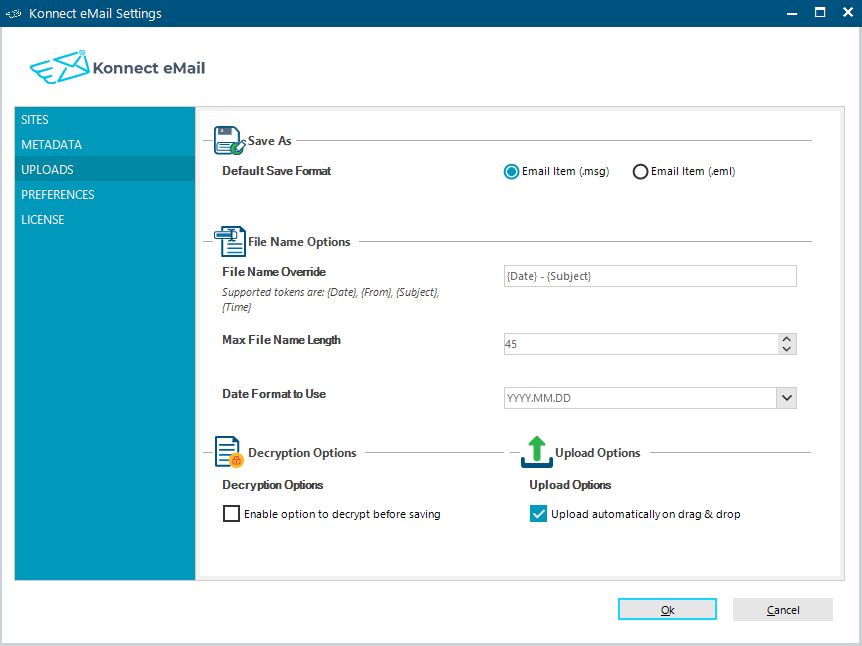
Save As: file format to use when saving email to SharePoint i.e. .msg or .eml file
Filename Override: specify a filename pattern to use when saving email. Supported tokens are: {Date}, {From}, {Subject}, {Time}
Max Filename Length: specify the maximum character limit get gets applied to filenames
Date Format to Use: specify the date format to use when a date token is used to generate the filename
Decryption Options: use this option ONLY if you use encrypted emails. When enabled the Add-In will try to decrypt the email before it is saved to SharePoint
Preferences
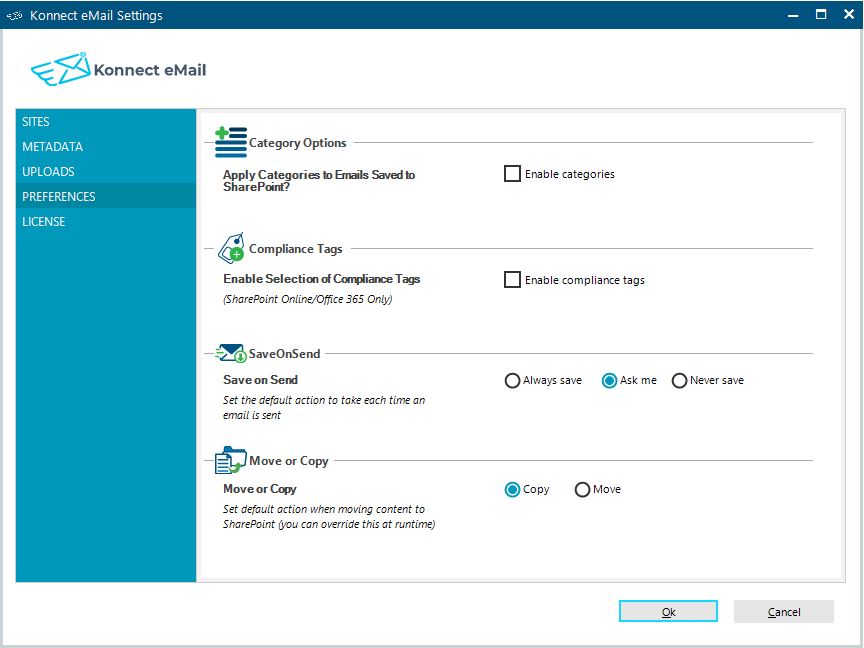
Category Option: enable or disable tagging emails when they are saved to SharePoint. This serves as a visual cue to know if the emails has already been saved before.
Compliance Tags: enable or disable support for O365 Compliance Tags in SharePoint. Use this parameter only for O365/SharePoint Online.
Save on Send: sets the preference for a prompt to save email after sending.
Move or Copy: set default action when moving content to SharePoint. You can override this at runtime by using context menus
License
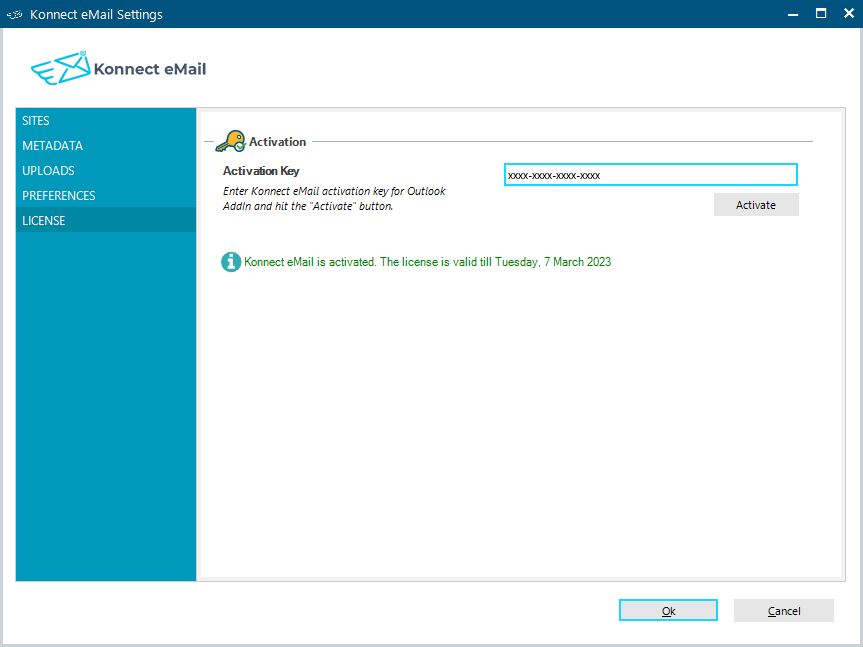
Activation: add or update your software license keys and hit the “Activate” button
Saving Emails
Launch the app sidebar by clicking the “Konnect eMail” tab within the Outlook application and click “Launch”.
The app is intuitive to use, however we have detailed the steps in how to save emails and attachments to SharePoint page.